虽然我很多年前就知道这家,但这家的小鸡我是第一次上车,之前从来没买过的原因是受一些人的评价所影响。
前几天实在没忍住就剁了一台LV RYZEN KVM 1GB+512GB块存储。小鸡3.5刀,块存储2.5刀,相当于月付6刀。
买之前已经做好心理准备了,本以为是上了个拖拉机,没想到用了几天发现各方面还不错,有点出乎意料。。所以也就有动力水一下这篇文章了。。
简单测评
CPU和内存:
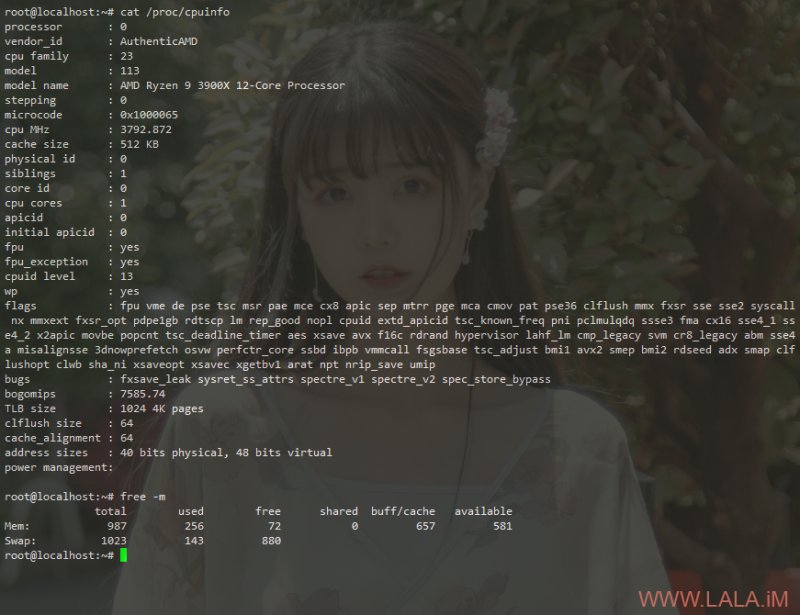
硬盘20GSSD,那个512G是额外挂载的块存储,后面我会写到如何挂载:
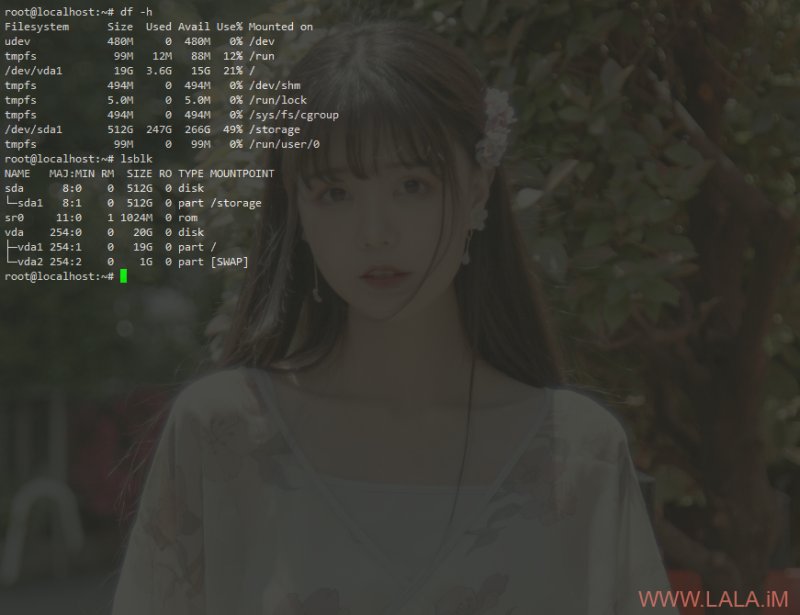
20G系统盘IO:
fio Disk Speed Tests (Mixed R/W 50/50):
---------------------------------
Block Size | 4k            (IOPS) | 64k           (IOPS)
  ------   | ---            ----  | ----           ----
Read       | 144.62 MB/s  (36.1k) | 971.95 MB/s  (15.1k)
Write      | 145.00 MB/s  (36.2k) | 977.07 MB/s  (15.2k)
Total      | 289.62 MB/s  (72.4k) | 1.94 GB/s    (30.4k)
           |                      |
Block Size | 512k          (IOPS) | 1m            (IOPS)
  ------   | ---            ----  | ----           ----
Read       | 1.25 GB/s     (2.4k) | 1.26 GB/s     (1.2k)
Write      | 1.32 GB/s     (2.5k) | 1.34 GB/s     (1.3k)
Total      | 2.58 GB/s     (5.0k) | 2.61 GB/s     (2.5k)
512G块存储IO,这里我就用fio随便测了下顺序写,因为都是拿来做下载机,肯定都是顺序IO居多:
Write_PPS: Laying out IO file (1 file / 5120MiB)
Jobs: 2 (f=2): [W(1),_(2),W(1)][100.0%][w=553MiB/s][w=4425 IOPS][eta 00m:00s]
Write_PPS: (groupid=0, jobs=4): err= 0: pid=19880: Thu Jul  9 22:52:26 2020
  write: IOPS=4430, BW=554MiB/s (581MB/s)(20.0GiB/36977msec); 0 zone resets
    slat (usec): min=3, max=158642, avg=292.21, stdev=5025.91
    clat (usec): min=1316, max=843543, avg=114401.76, stdev=67160.98
     lat (usec): min=1825, max=843557, avg=114694.54, stdev=67060.26
    clat percentiles (msec):
     |  1.00th=[    8],  5.00th=[   22], 10.00th=[   41], 20.00th=[   51],
     | 30.00th=[   70], 40.00th=[  102], 50.00th=[  116], 60.00th=[  125],
     | 70.00th=[  136], 80.00th=[  157], 90.00th=[  197], 95.00th=[  239],
     | 99.00th=[  326], 99.50th=[  368], 99.90th=[  464], 99.95th=[  542],
     | 99.99th=[  760]
   bw (  KiB/s): min=76032, max=188416, per=25.02%, avg=141890.04, stdev=19545.30, samples=291
   iops        : min=  594, max= 1472, avg=1108.43, stdev=152.70, samples=291
  lat (msec)   : 2=0.01%, 4=0.09%, 10=1.98%, 20=2.73%, 50=14.39%
  lat (msec)   : 100=19.86%, 250=57.14%, 500=3.75%, 750=0.05%, 1000=0.02%
  cpu          : usr=1.30%, sys=1.11%, ctx=32664, majf=0, minf=47
  IO depths    : 1=0.1%, 2=0.1%, 4=0.1%, 8=0.1%, 16=0.1%, 32=0.1%, >=64=99.8%
     submit    : 0=0.0%, 4=100.0%, 8=0.0%, 16=0.0%, 32=0.0%, 64=0.0%, >=64=0.0%
     complete  : 0=0.0%, 4=100.0%, 8=0.0%, 16=0.0%, 32=0.0%, 64=0.0%, >=64=0.1%
     issued rwts: total=0,163840,0,0 short=0,0,0,0 dropped=0,0,0,0
     latency   : target=0, window=0, percentile=100.00%, depth=128

Run status group 0 (all jobs):
  WRITE: bw=554MiB/s (581MB/s), 554MiB/s-554MiB/s (581MB/s-581MB/s), io=20.0GiB (21.5GB), run=36977-36977msec

Disk stats (read/write):
  sda: ios=1/51572, merge=0/111857, ticks=126/3755896, in_queue=3702452, util=98.74%
带宽:
iperf3 Network Speed Tests (IPv4):
---------------------------------
Bouygues Telecom          | Paris, FR (10G)           | 606 Mbits/sec   | 115 Mbits/sec
Online.net                | Paris, FR (10G)           | 1.01 Gbits/sec  | 104 Mbits/sec
WorldStream               | The Netherlands (10G)     | 996 Mbits/sec   | 254 Mbits/sec
wilhelm.tel               | Hamburg, DE (10G)         | 843 Mbits/sec   | 208 Mbits/sec
Biznet                    | Bogor, Indonesia (1G)     | 448 Mbits/sec   | 158 Mbits/sec
Hostkey                   | Moscow, RU (1G)           | 377 Mbits/sec   | 772 Mbits/sec
Velocity Online           | Tallahassee, FL, US (10G) | 1.04 Gbits/sec  | 371 Mbits/sec
Airstream Communications  | Eau Claire, WI, US (10G)  | 1.06 Gbits/sec  | 134 Mbits/sec
为了测试带宽,我特地做了一个55GB的种子发在了公网,挂了一晚上,跑了1T多的流量,平均上传速度35MB/s左右:
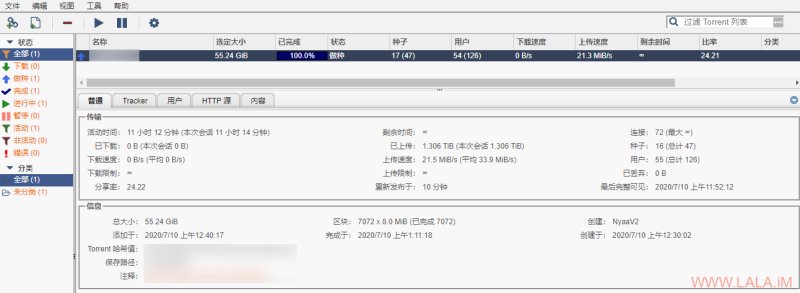
总结一下,CPU很给力,SSD系统盘性能很爆炸,块存储的性能也很OK,这是我用过这么多大盘鸡中硬盘性能数一数二的了。
如何购买
戳这里:https://my.frantech.ca/aff.php?aff=3861&gid=37
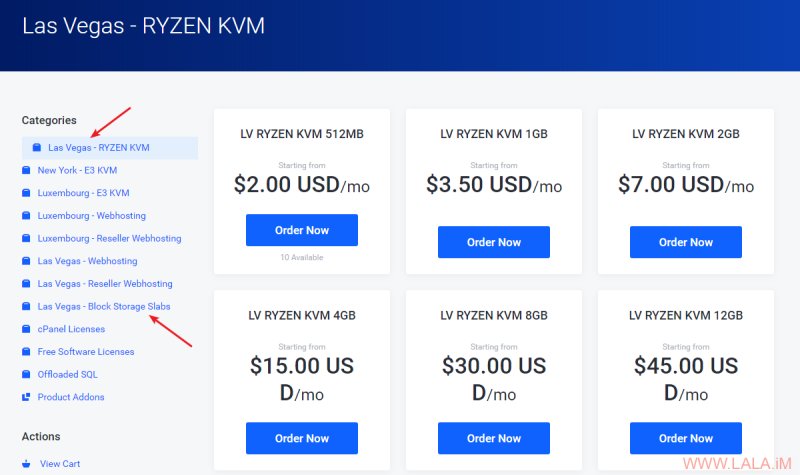
本文测评机的配置是3.5刀款:
1H1G
20GSSD
Unmetered Bandwidth
如果需要块存储挂载请购买LasVegas区域,只有这个区域的机器可以挂载:
注意事项:
1.这家对新账号较严格,注册的时候不要使用VPN或者代理,很大概率被判定为欺诈订单。
2.注册时的信息和付款时的信息需要一致,尤其是使用PayPal付款的时候要保证姓名和邮件一致。
如何挂载块存储
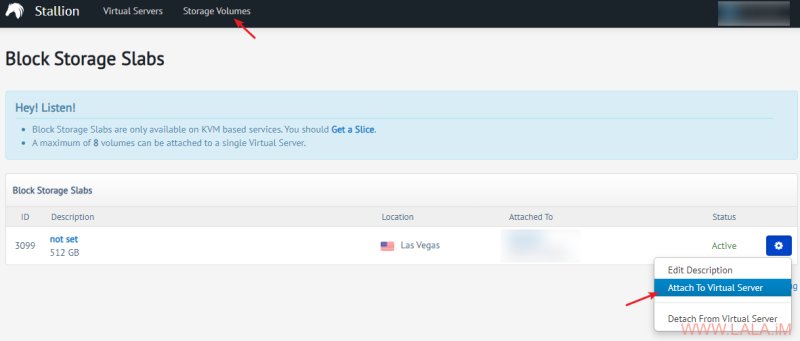
首先登录VPS控制面板,找到StorageVolumes,按下图设置:
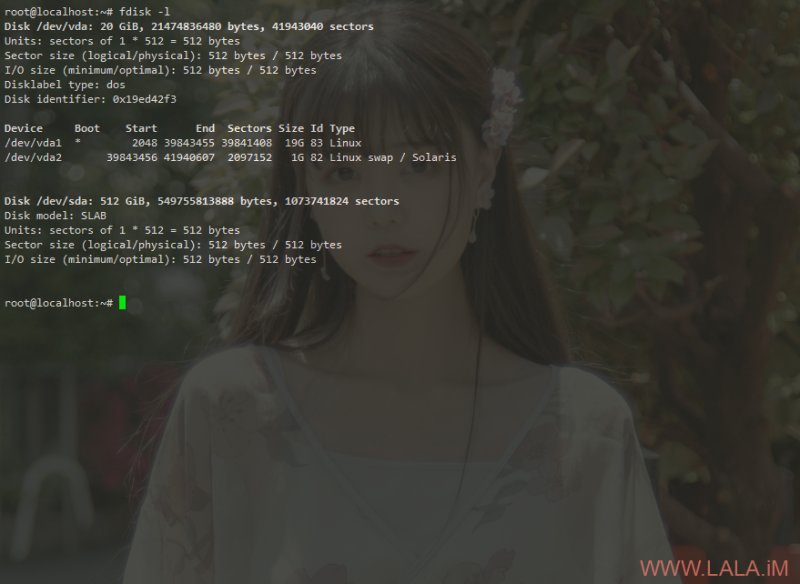
在VPS内检查硬盘是否已经附加进来:
fdisk -l可以看到一块没有分区的/dev/sda:
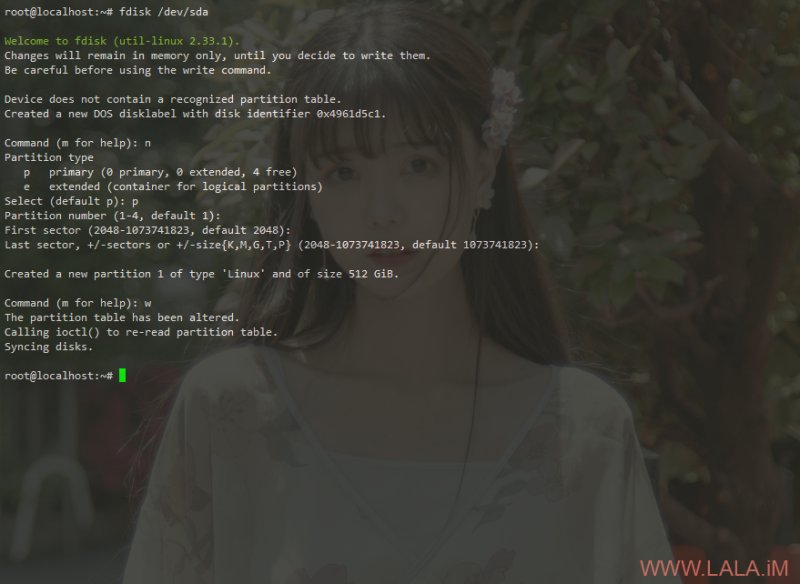
接下来创建分区:
fdisk /dev/sda按照下图的流程走即可:
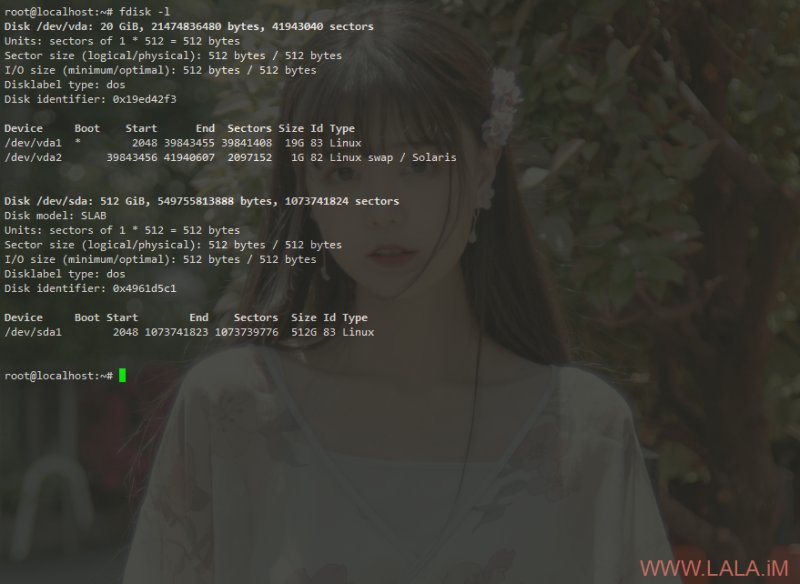
检查分区是否正常:
然后制作文件系统,这里我选择使用xfs:
apt -y update
apt -y install xfsprogs
mkfs.xfs /dev/sda1
如果一切正常,会有类似如图的回显:
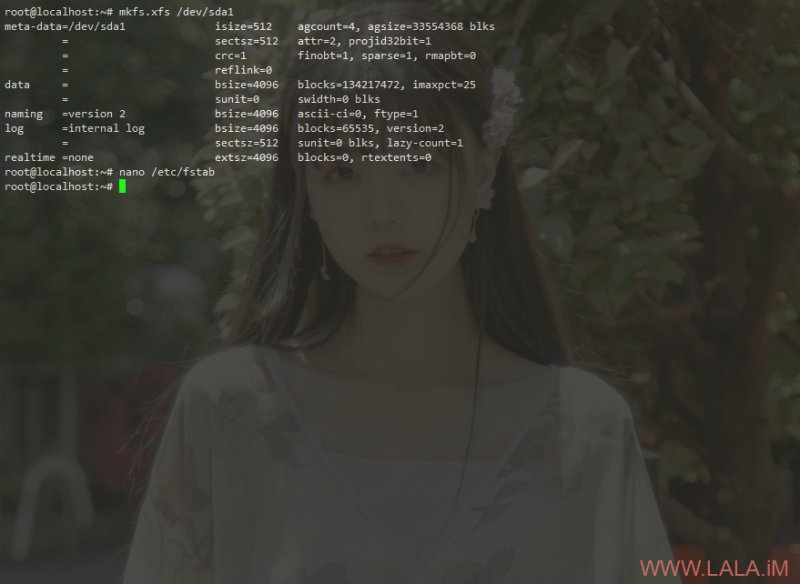
最后创建挂载目录并挂载:
mkdir -p /storage
mount /dev/sda1 /storage
开机自动挂载,编辑fstab:
nano /etc/fstab文件的末尾加入:
/dev/sda1 /storage xfs defaults 0 0